Share TripEZGo with your friends and get a year of Premium: no ads, unlimited trips and travel companions, Live Activity and calendar integration, all unlocked.
Back in the TripEZGo app, go to Settings › Manage subscription and tap “Restore Purchases” at the very bottom
Premium is now active.
Privacy and security
Your trips live only on your phoneand in your iCloud
No account. We run no server and never see your trips. Backup, sync and sharing all go through iCloud — and you can edit without a connection.
Read more
Privacy and data security come first. With AI everywhere, keeping your data safe and private matters more than ever. TripEZGo is built without a server of its own, so we have nowhere to keep your travel data. It lives on your device, or in Apple iCloud for backup and sync across your devices. Even when several people co-edit a trip, it runs on iCloud sharing.
Everything in your trips, files and photos included, stays on your phone or in your iCloud. Export and import backups yourself, or just let iCloud back up and sync.
Works offline. Everything lives on your phone, so you can open and edit all of it without a connection. If iCloud backup and sync or sharing is on, your changes sync once you're back online.
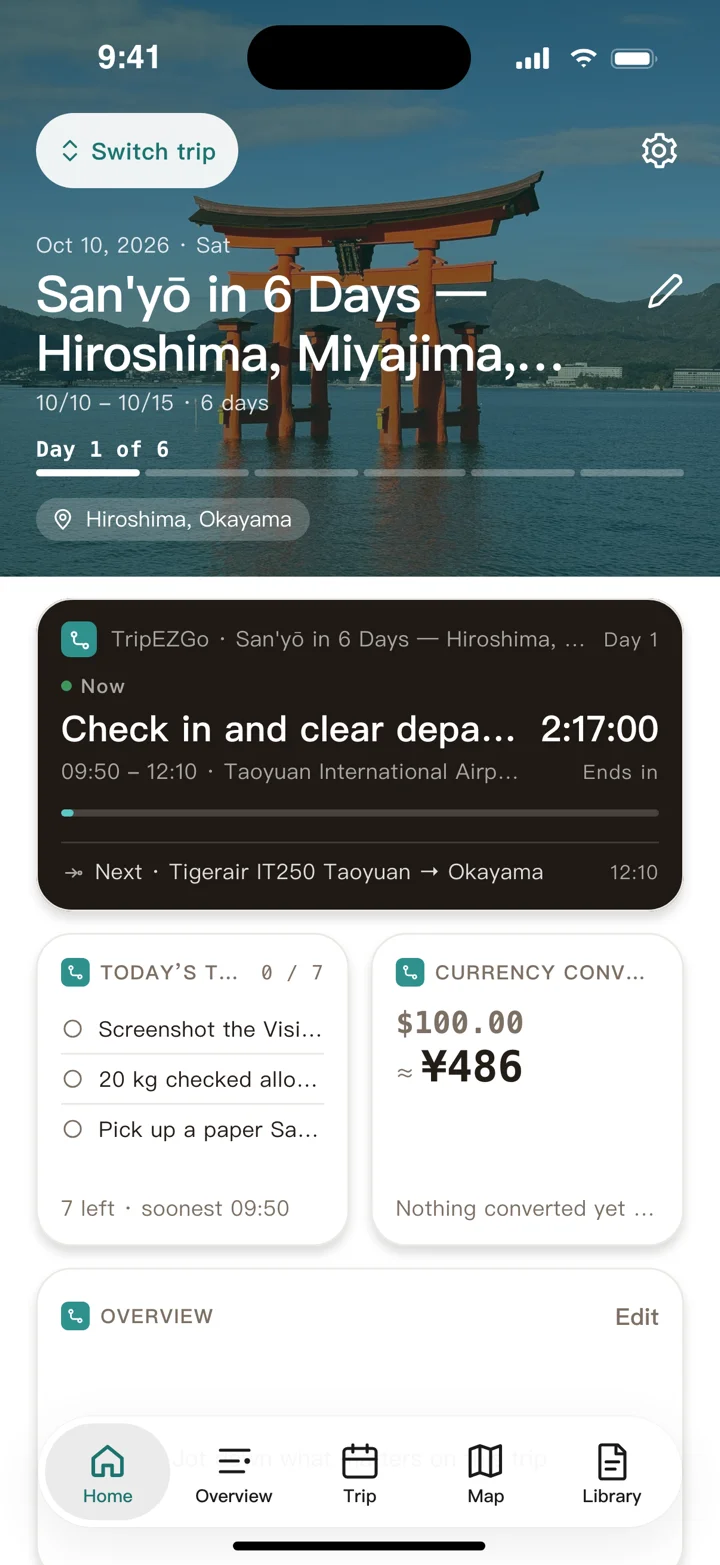
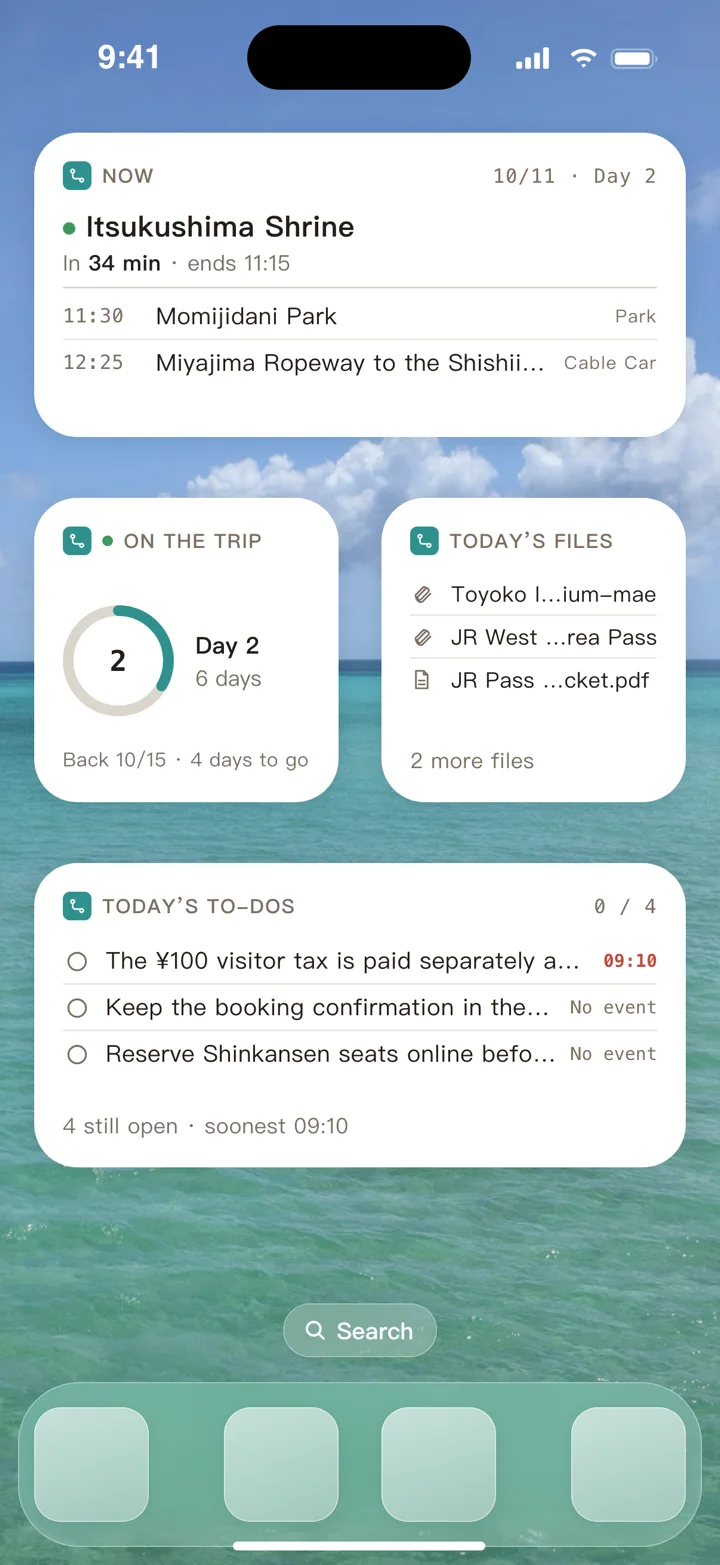
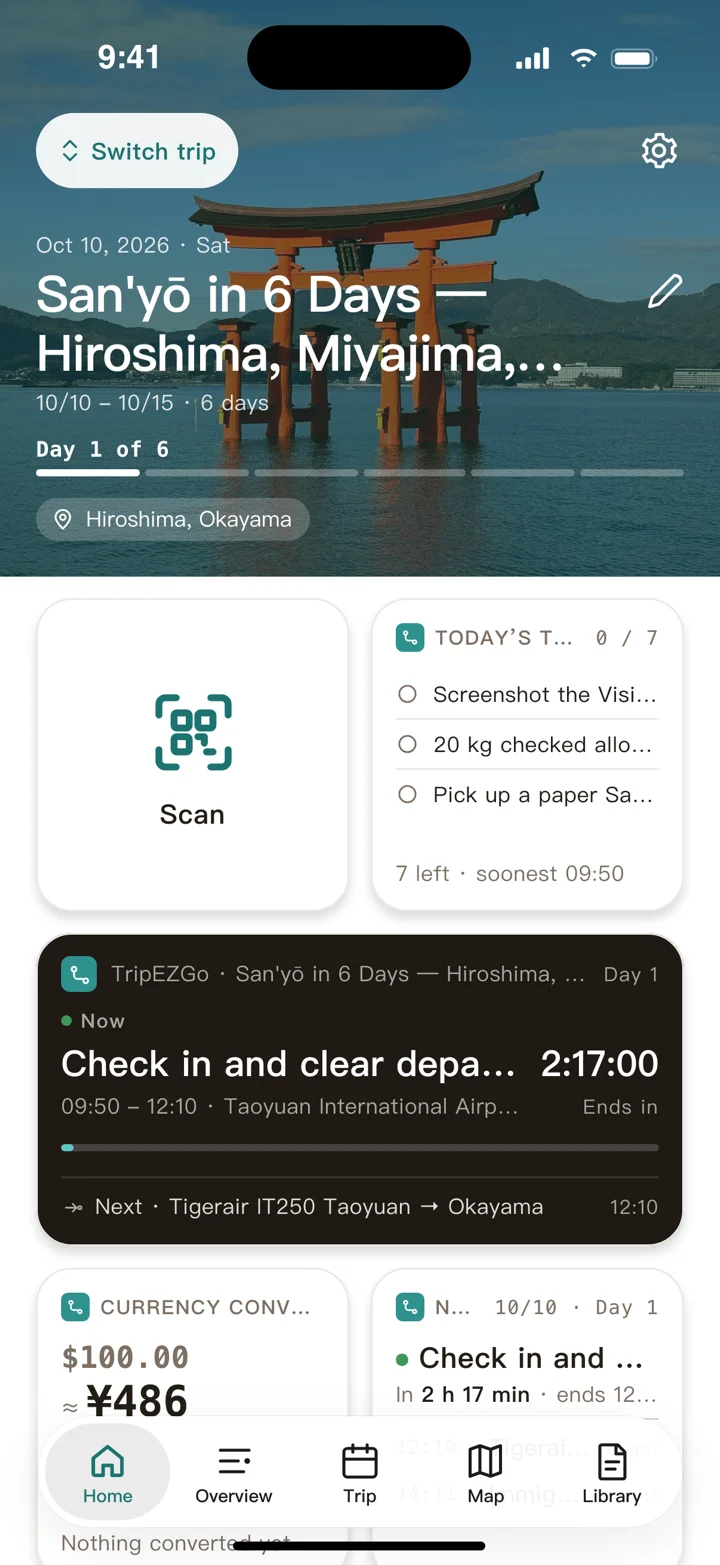
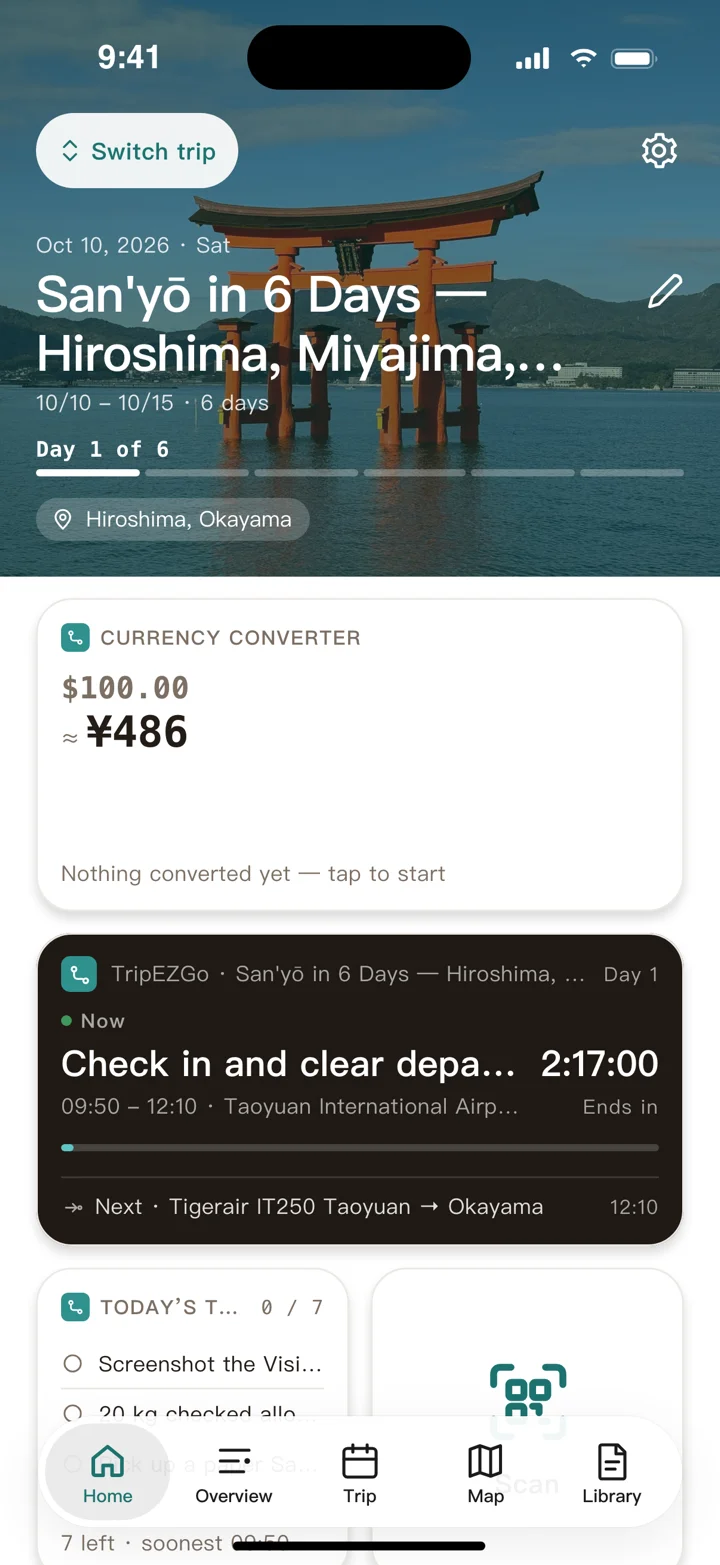
Live activity, to-dos, currency and overview, arranged the way you want.
The cover shows which day it is and how far along the trip is
Press and hold to edit, then drag a widget to a new spot
Spread widgets over several pages and swipe between them
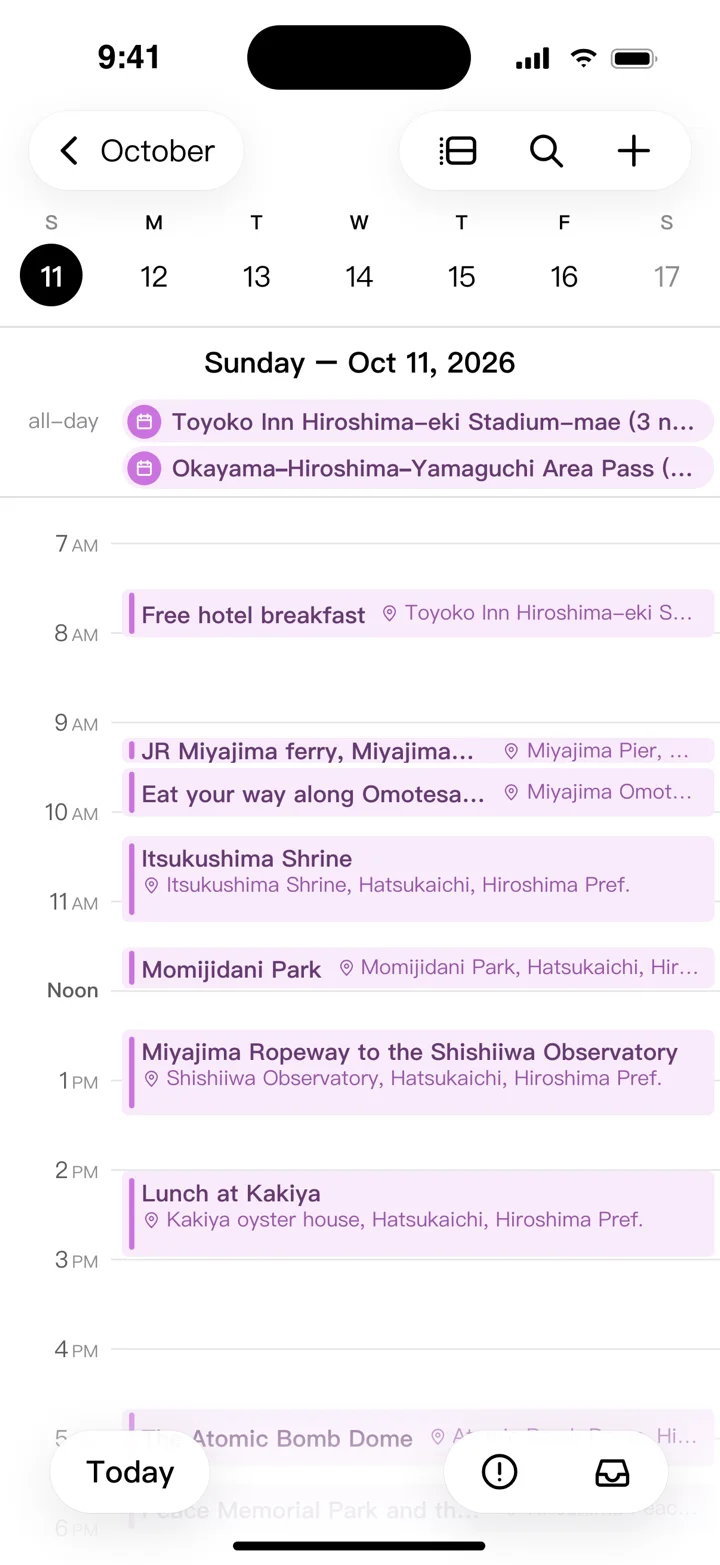
01 · Calendar / Timeline
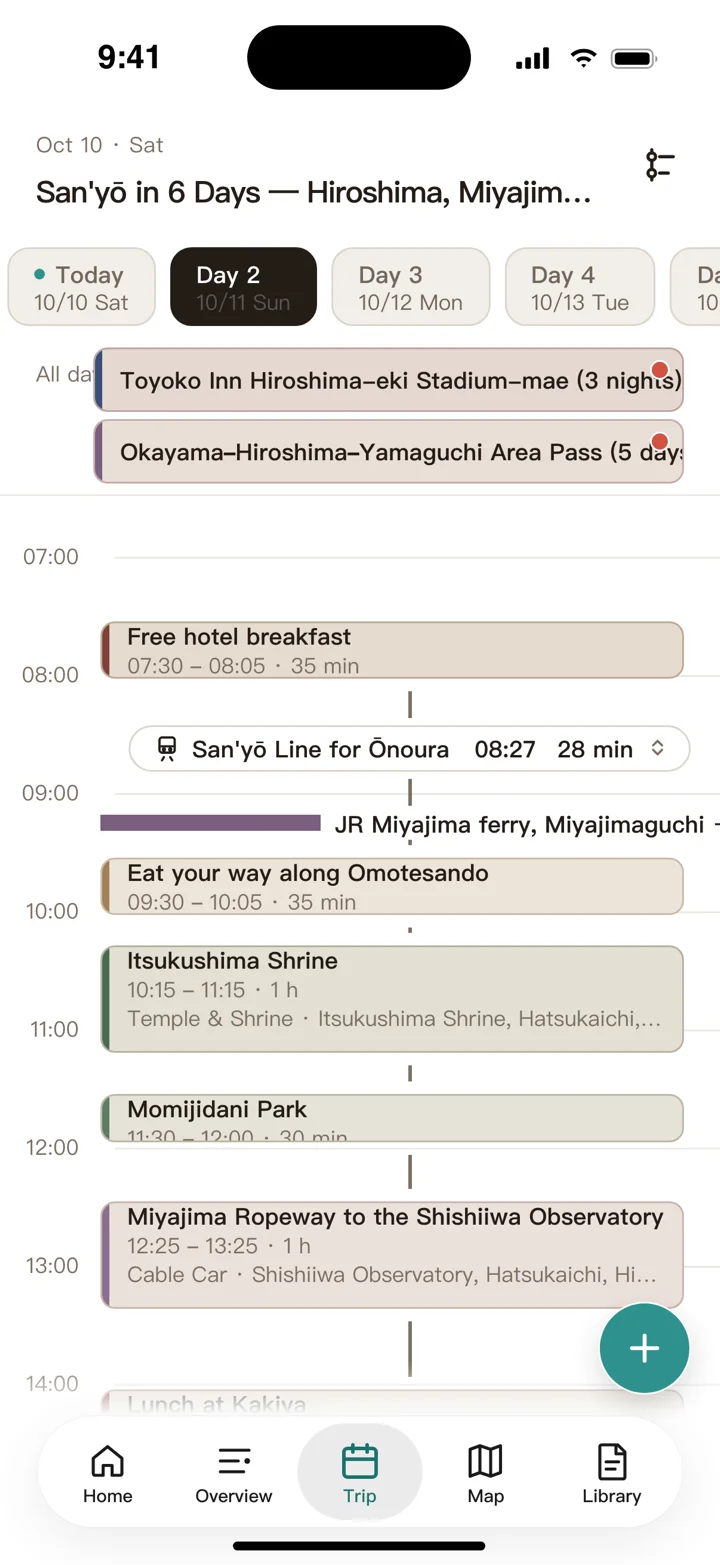
Today's plan, at a glance
Events, free time and travel time, laid out on a single line of time.
Drag to plan and rearrange events
Drag an unscheduled place onto a time and it's planned
How long you stay, how much time is free
Switch between calendar and timeline anytime
Read more
Calendar view: every event sits on a calendar, just like an appointment. It's easy to read, and it's the easiest way to plan — drag to place an event, drag again to move it. Still not sure what comes first? Rearranging takes seconds.
Timeline view: if you'd rather read your day as a timeline, switch over. Where to be and when, how long to stay, how long to get there — all at a glance.
02 · Inspiration
Saved from anywhere,inspiration all in one place
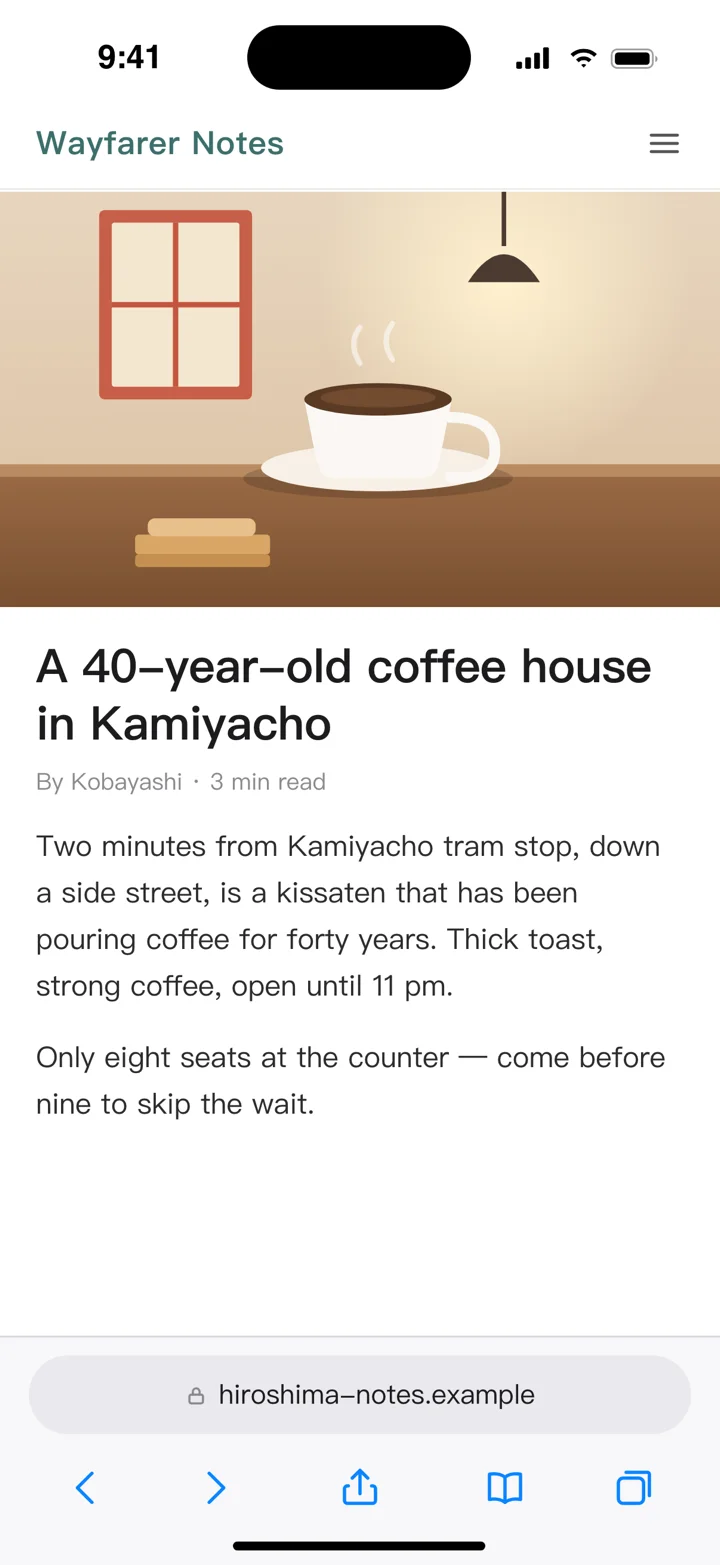
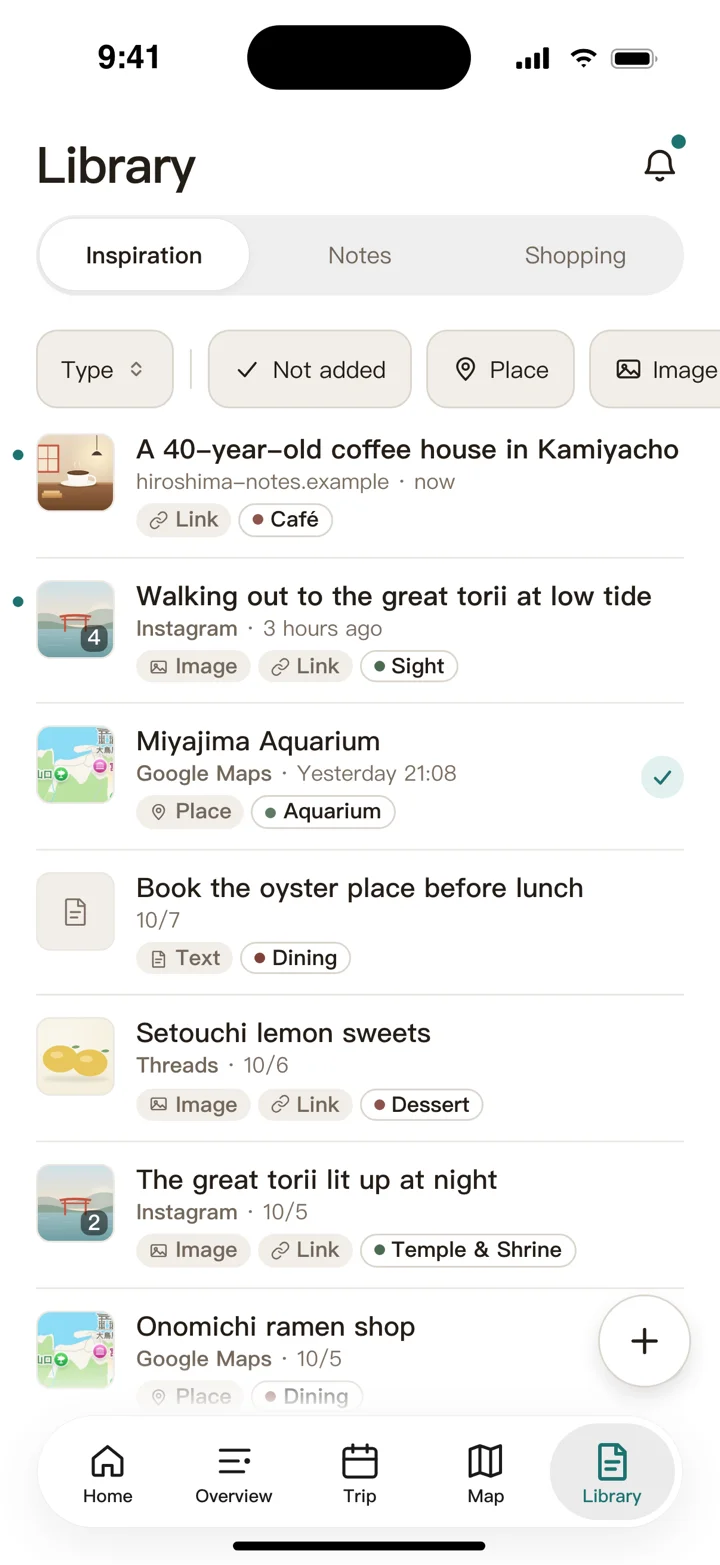
Share in from Safari, maps, social apps and Photos — then turn it into an event in one tap.
Web pages, places, posts and photos — share them to TripEZGo and they're saved
Title and preview image fill in on their own — no tidying
Unread and not-yet-added items are easy to tell apart
When you're ready, add it to an event, a note, the shopping list, an attachment or a map pin in one tap
Read more
Share in from other apps: found somewhere you want to go, or a spot a coworker recommended? Tap Share in Safari, Google Maps, Instagram, Threads or another app, pick TripEZGo, and it's saved to Library › Inspiration first.
Save first, decide later: no need to pick a day on the spot. The title and preview image fill in by themselves, anything you haven't opened is marked unread, and you can filter to just what's “Not added”.
Add in one tap: when you're ready, tap “Add to…” and the inspiration becomes an event on your calendar, a note, a shopping-list item, an event attachment or a map pin.
03 · Map
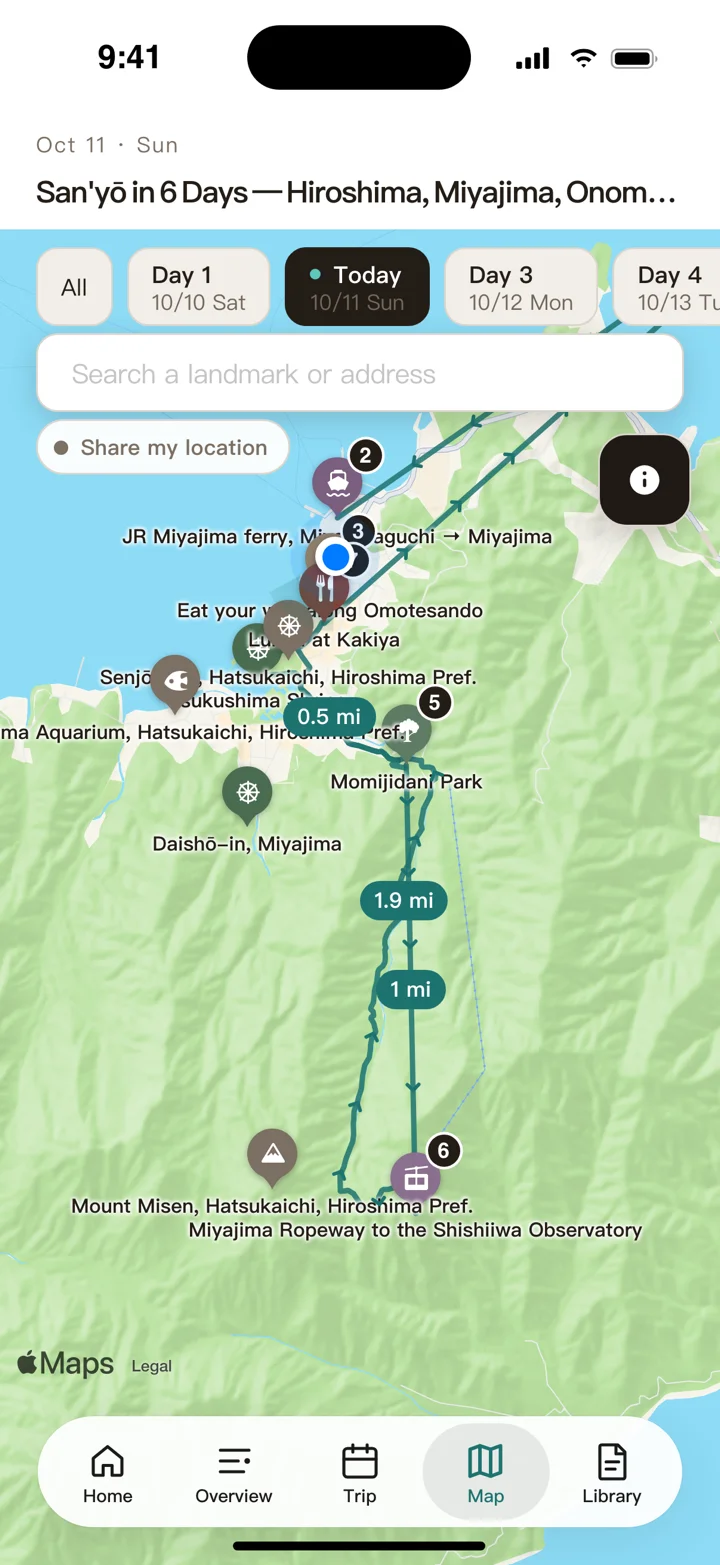
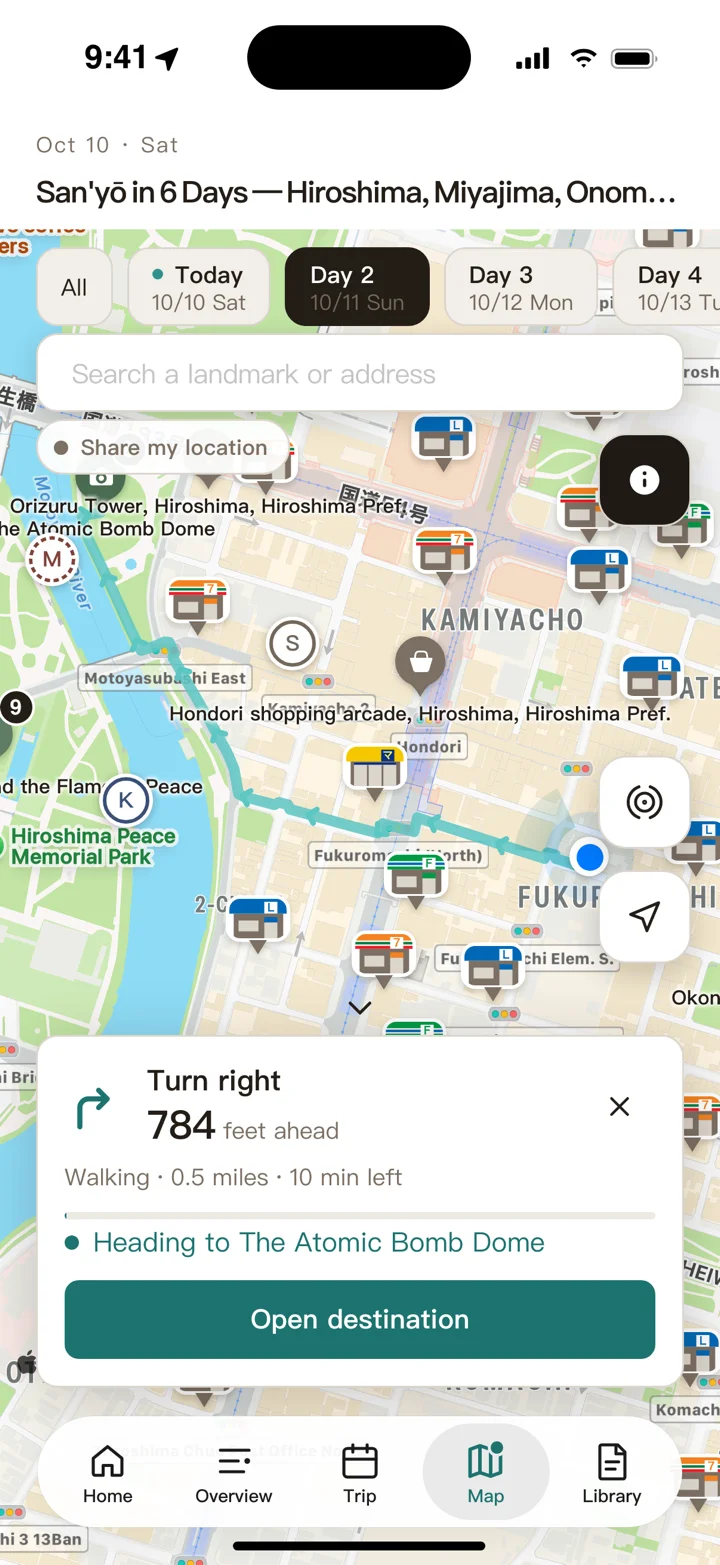
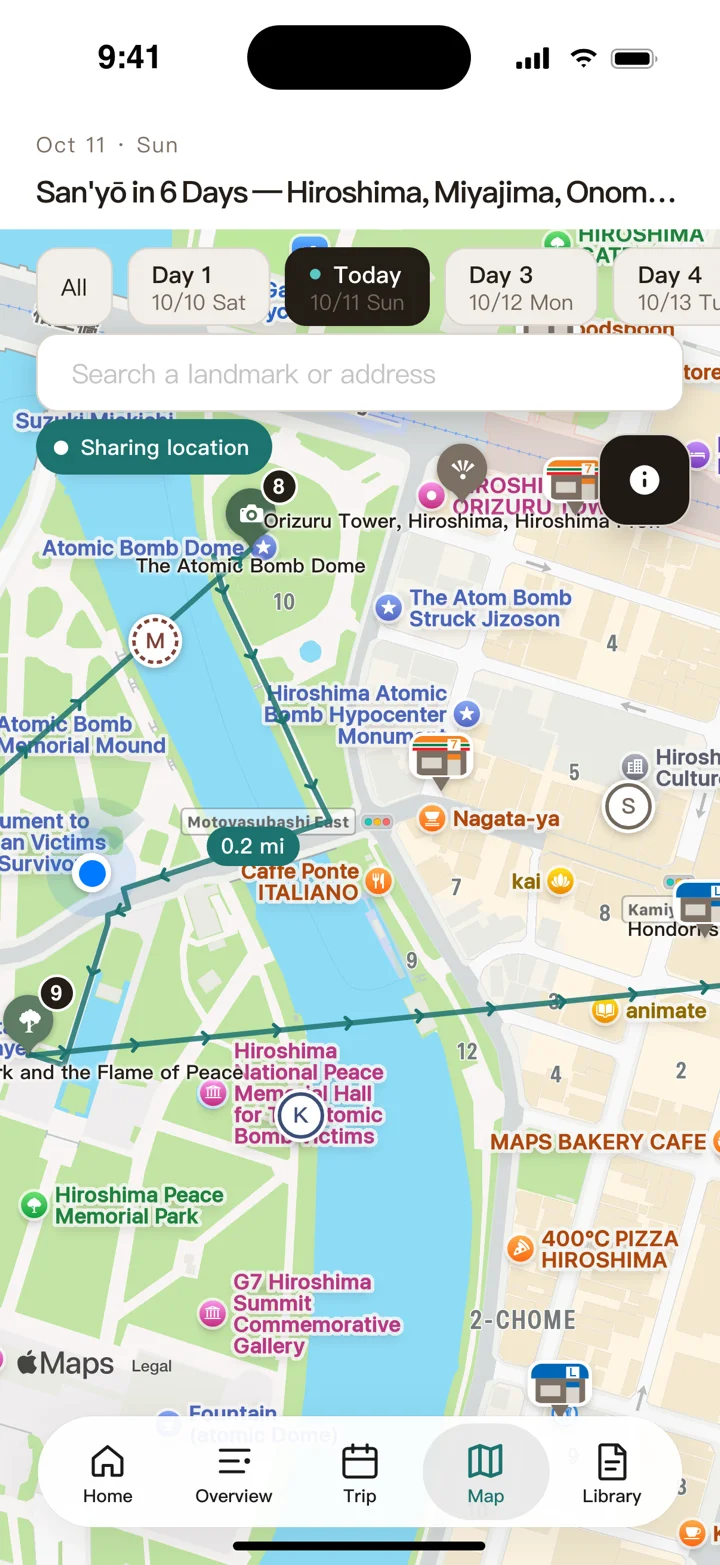
Where's next? The map shows you
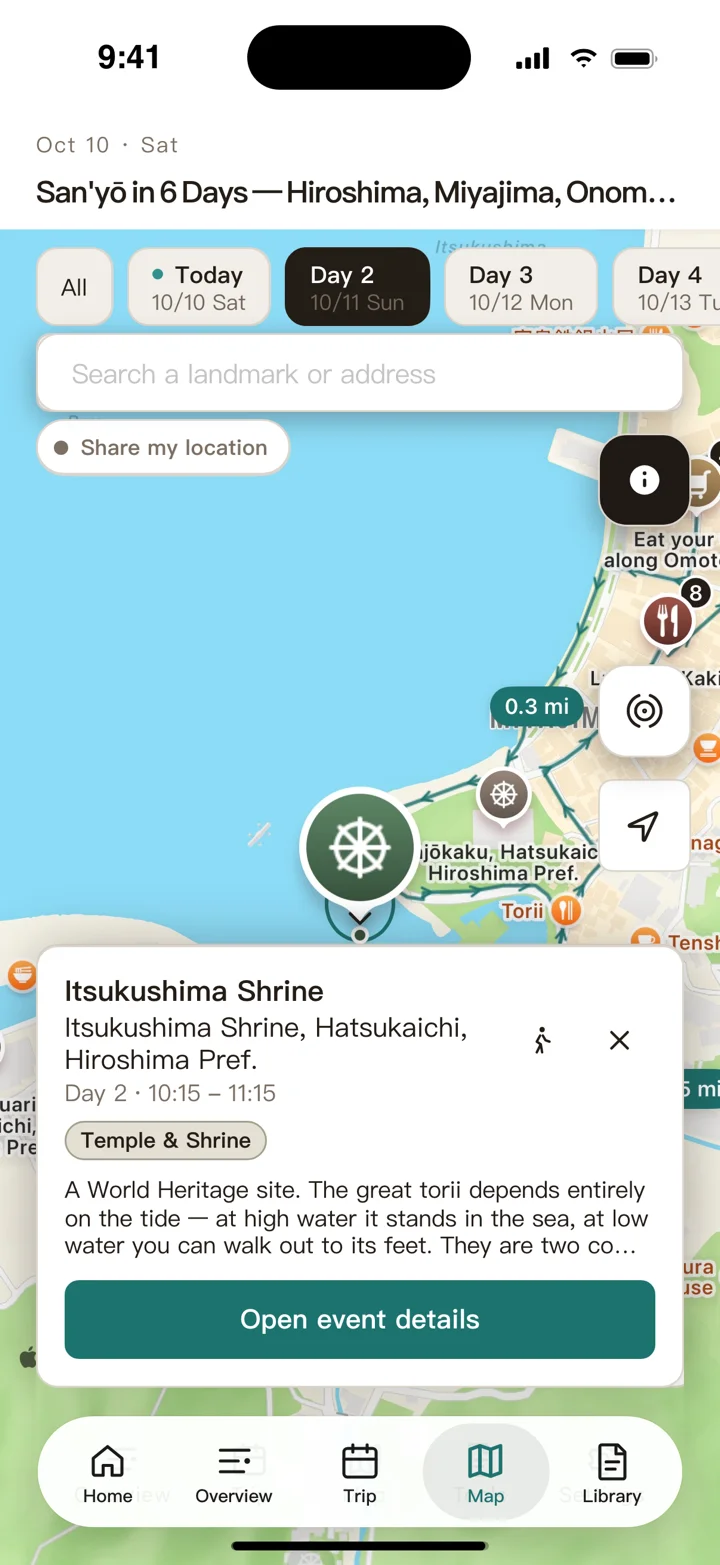
Each day's events join into a route, with the shops along the way marked too.
Daily routes and legs
Pin the places you want to go
Japanese convenience stores, department stores and drugstores
Walking directions
Read more
Give your events a place, and the map shows how each day's events sit in relation to one another, and the route between them.
Besides your events, you can drop markers on places you'd like to go, so on the road you can always check what else is nearby. Convenience stores and department stores from several chains are built in too — open the map and you'll see if one is close.
Walking directions, too: spotted somewhere nearby but not sure how to get there? Tap to start navigating and just follow along.
04 · Plan events
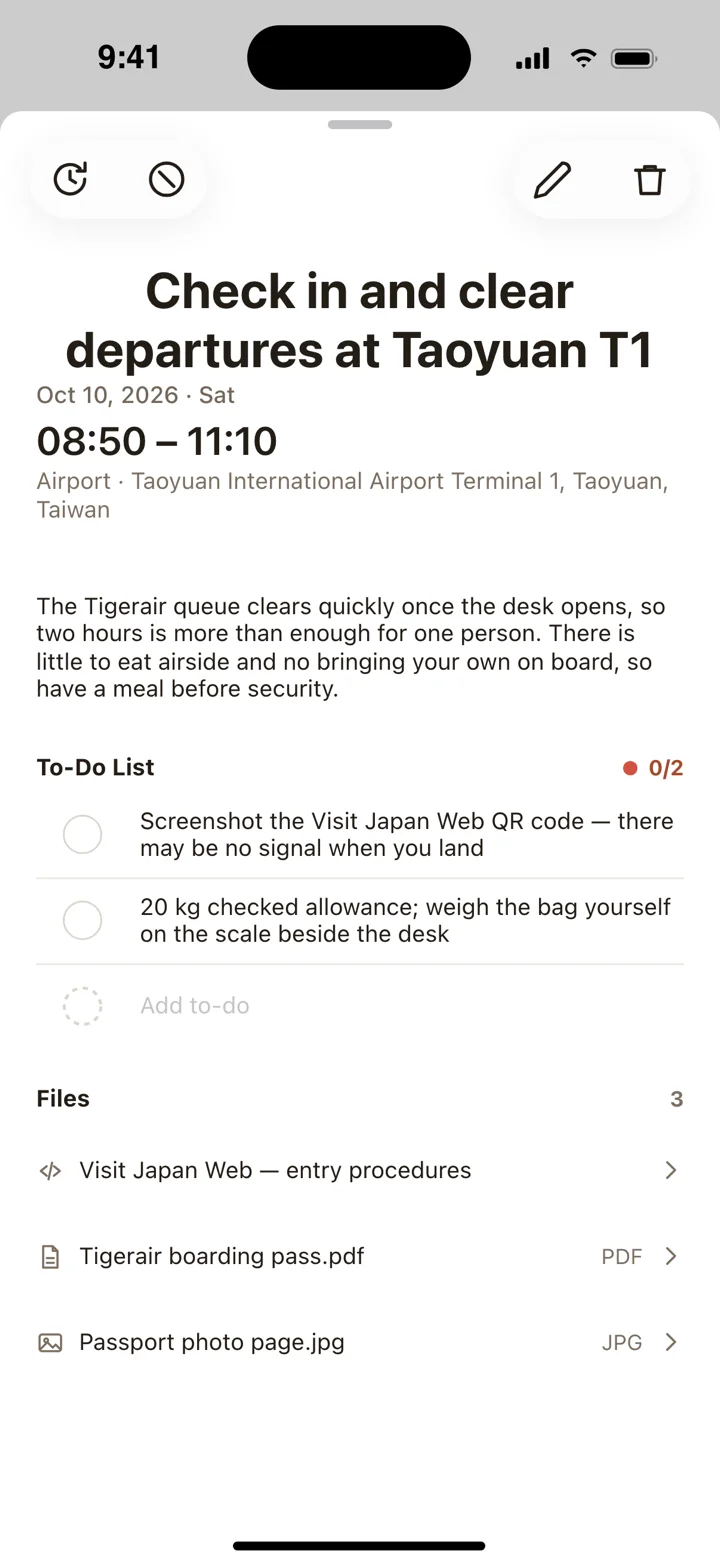
Everything you need, attached to the event
Tickets, bookings and to-dos stay with the event. When you get there, one tap opens them.
Search for a place, or just paste a Google Maps link
Photos, files and e-ticket links
Different start and end time zones, all-day and unscheduled events
To-dos to tick off before you leave
Read more
We've thought of everything an event needs. For each event you can set:
Place: search by name or address, or just paste a Google Maps link or an address
Type / title: filled in as you enter a place, with the type worked out for you
Files: add photos (from the Photos app), files (from the Files app), or links (an e-ticket, say)
Time: different start and end time zones (take off in Taipei, land in Okinawa), all-day events (a hotel stay), and unscheduled events (no time set yet)
To-dos: “remember to book a table,” for example
Once an event is in, you can cancel it (it stays, struck through), delete it (gone for good), or move it later or earlier — it and every event after it shift by X hours and Y minutes.
05 · Legs
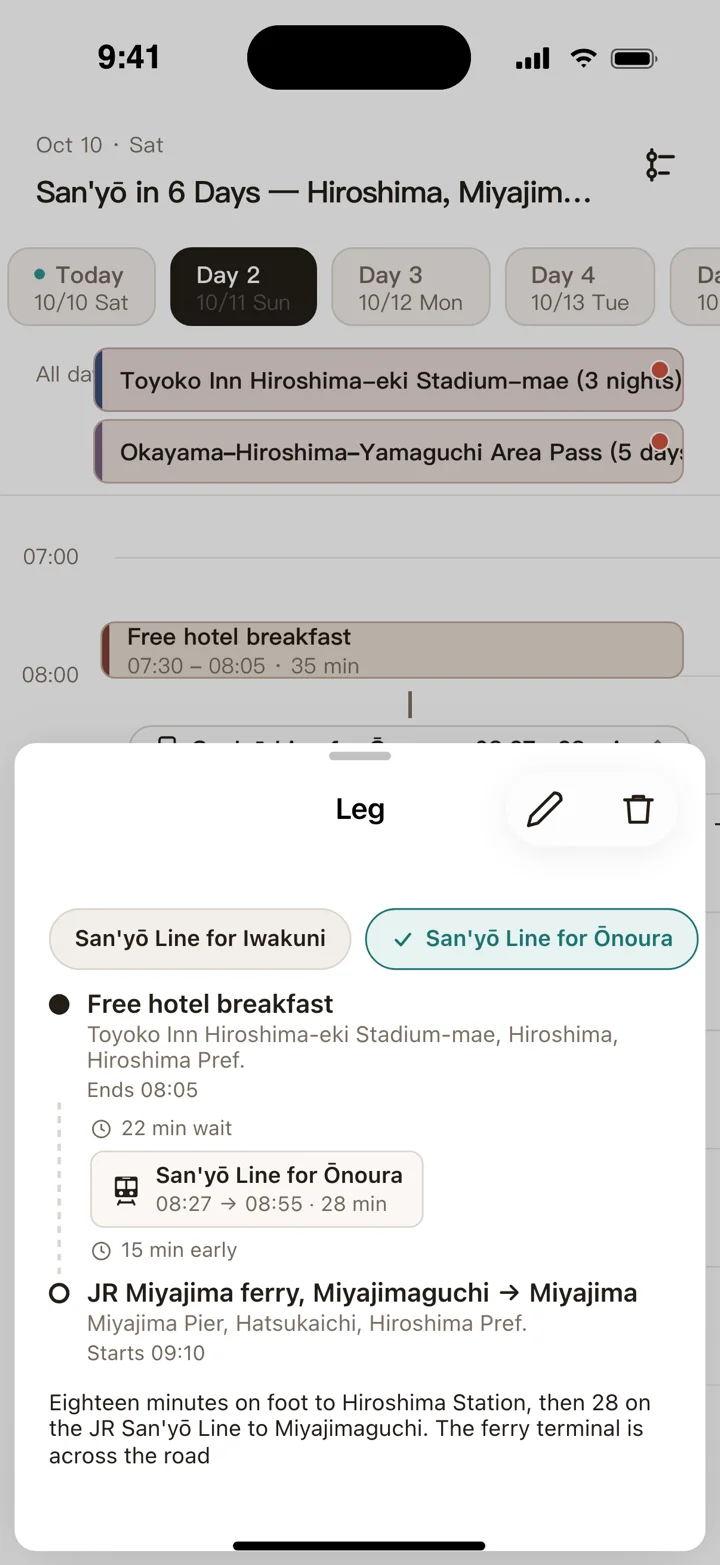
Miss this train? The next one is already lined up
Between two events there's a leg — and if there isn't enough time, you'll hear about it first.
Walking, driving or transit, with the time estimated for you
A warning when the leg takes longer than the gap
Several departures, with a reminder for the nearest one on the day
Read more
You can set a leg between any two events. A leg is how you get there — walking, driving or transit — and each gives you an estimated travel time between the two places. If the gap between the events is shorter than the leg, you get a warning (say they are 30 minutes apart, but the drive actually takes an hour).
Transit gets special care. Enter several departures ahead of time, and on the day you're reminded of the one closest to now. Early, or just missed it? Decide on the spot and jump straight to the next train or bus.
06 · Overview
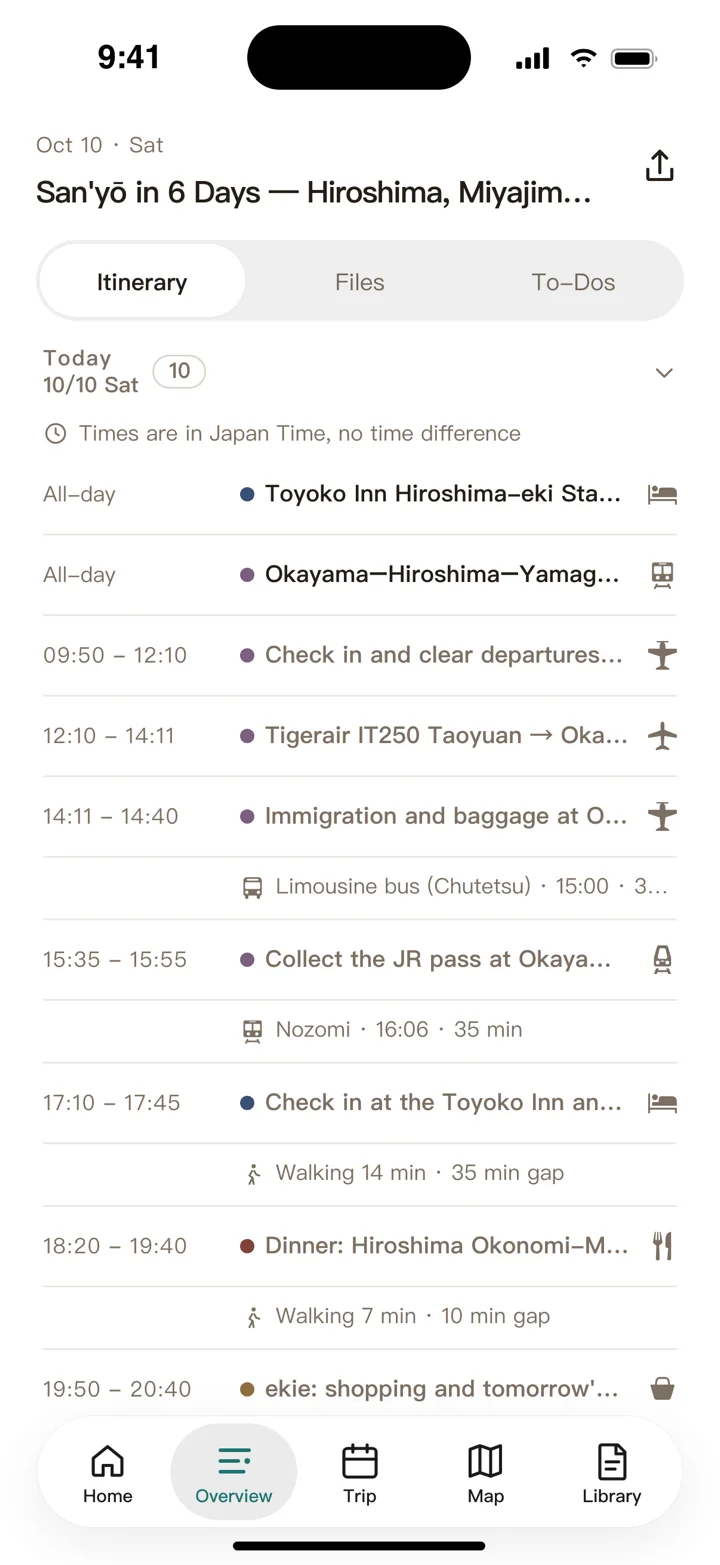
The whole trip, on one page
Events, files and to-dos — whatever you need is one tap away.
Your whole itinerary, grouped by day
Each day's files in one place
See at a glance which day, and which event, still has to-dos
Read more
Overview puts the whole trip on one page. It also gathers every event's files and to-dos, grouped by day — so you can open any event's files right here, or see which event on which day still has to-dos.
07 · Co-editing and location sharing
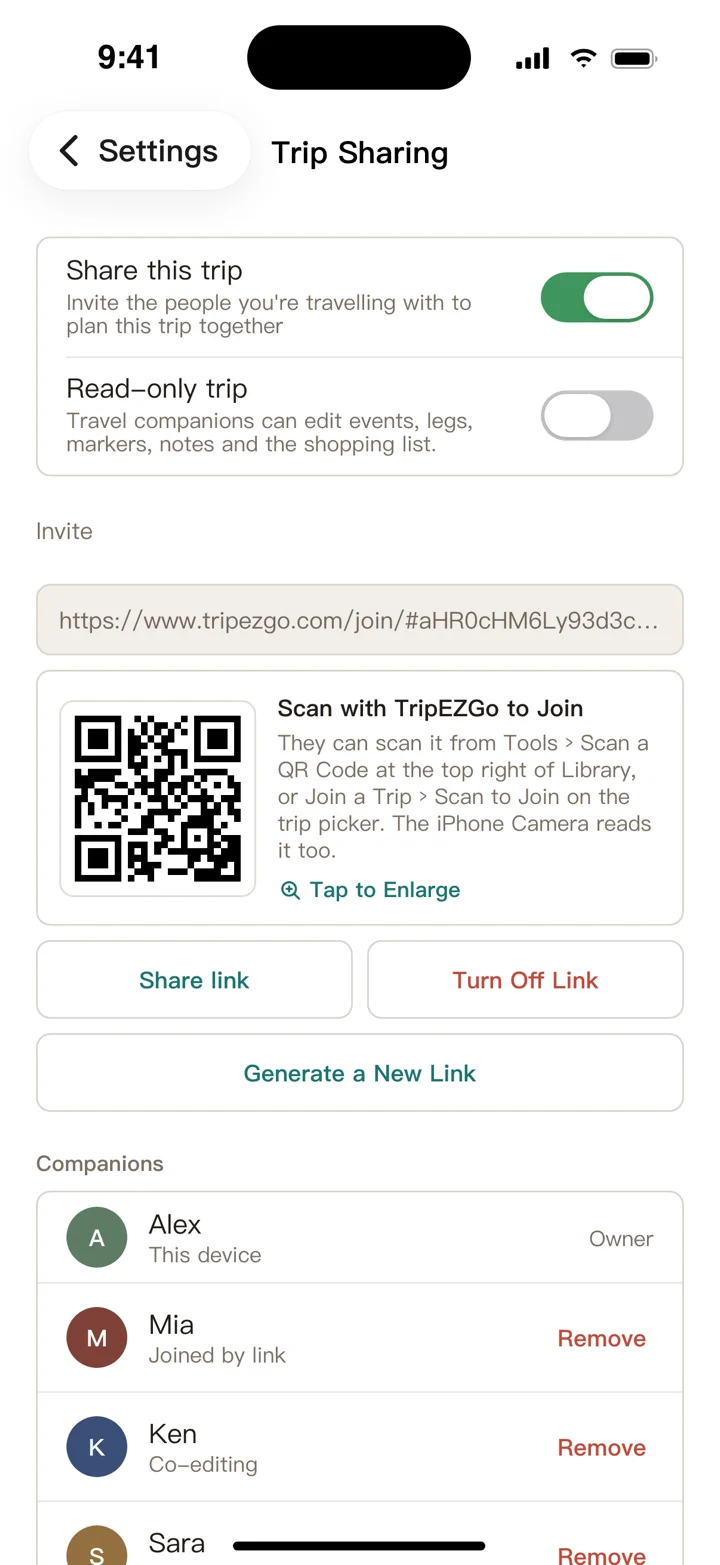
Plan together, travel together
Companions edit events, notes and files together. Share your location on the road, so you can find each other if you split up.
Invite companions to plan the same trip with you
See each other's location on the road
Choose whether notes, files, to-dos and the shopping list are shared
Read more
Share a trip and co-edit it, so your companions build it with you. Once you're on the road, companions can turn on location sharing to look out for each other — and find each other if you get separated.
Notes, files, to-dos and the shopping list can each be shared for co-editing, or kept to yourself.
Without opening the app
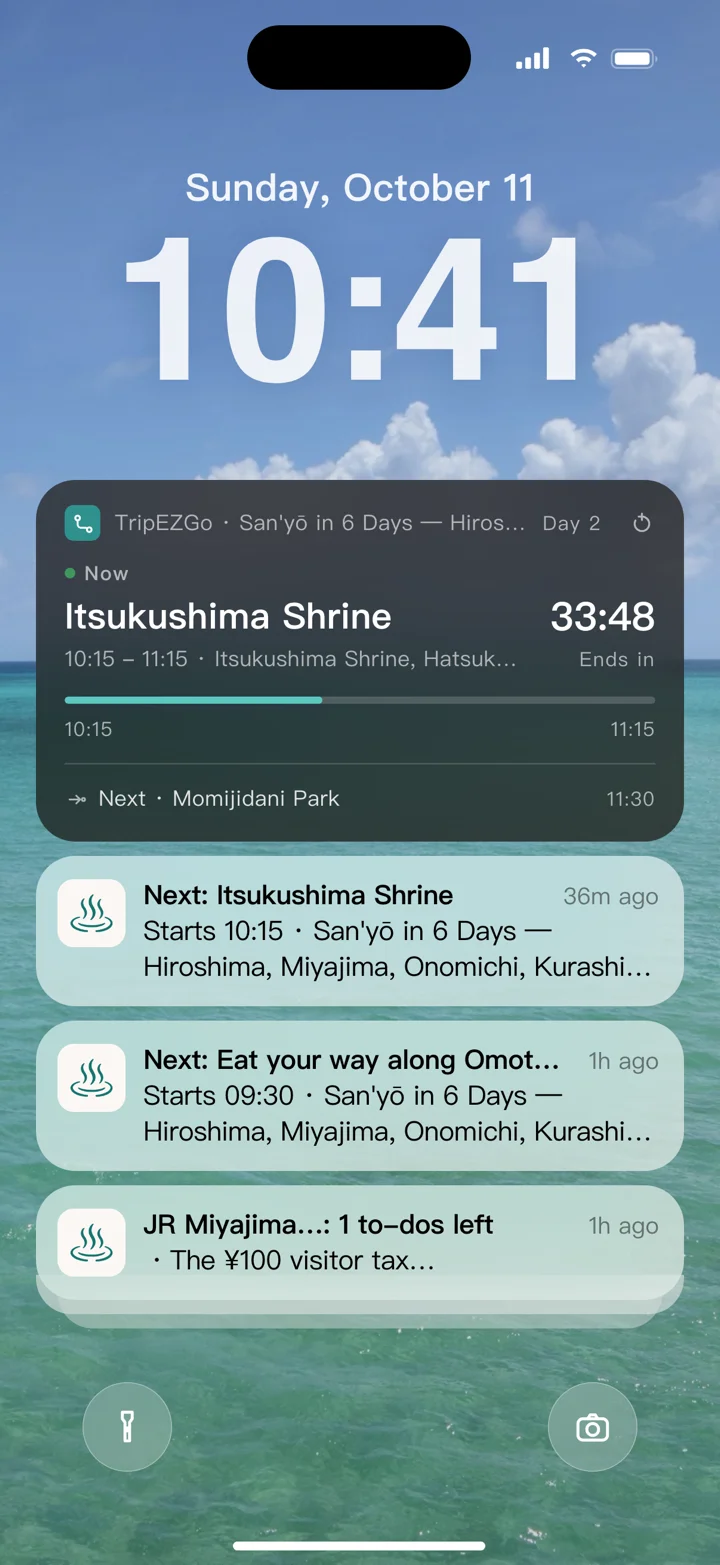
No unlocking — your next stop is on the Lock Screen
Where you are, how long you have left, and how to get to the next stop.
Live Activity: the current event on the Lock Screen and in the Dynamic Island, anytime
Notifications: before you set off, before an event starts, and while to-dos are still open
Widgets: today's events on your Home Screen and Lock Screen, with to-dos you can tick off right there
Read more
A wide range of widgets puts what you need right on your Home Screen or Lock Screen, ready to check and open.
While a trip is under way, the Live Activity means you don't even have to unlock your phone: one glance tells you how long you have at the current event, how you're getting to the next one, and what it is.
You'll get a notification before a trip begins, before each event starts, and while to-dos are still open.
Library & Home widgets
What you need on the road, all in one place
The Library holds your inspiration, notes and shopping list; the QR code scanner and currency converter sit on Home, one tap away.
Library
Collect inspiration
Share it in to save it now; turn it into an event when you plan
Notes
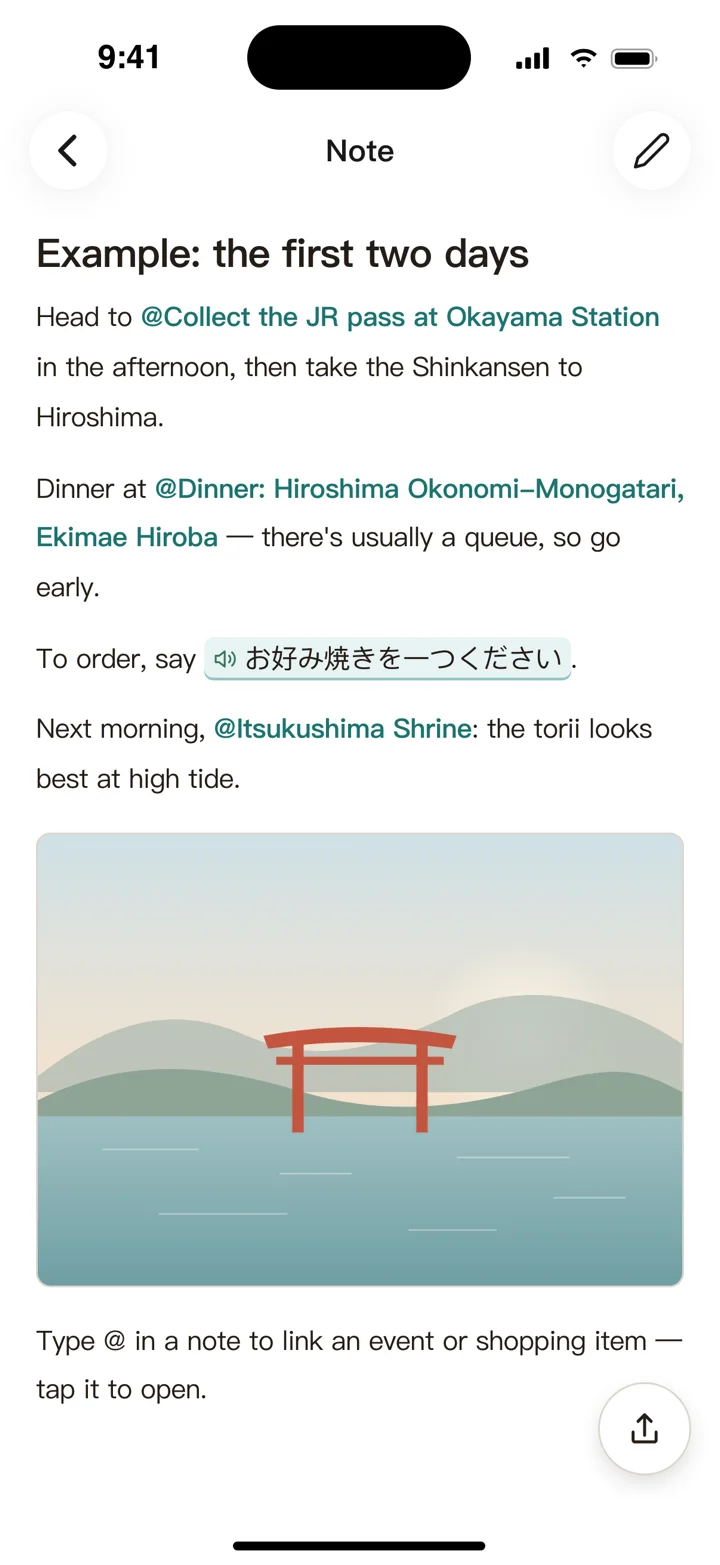
Text and photos — and it reads phrases aloud when you don't speak the language
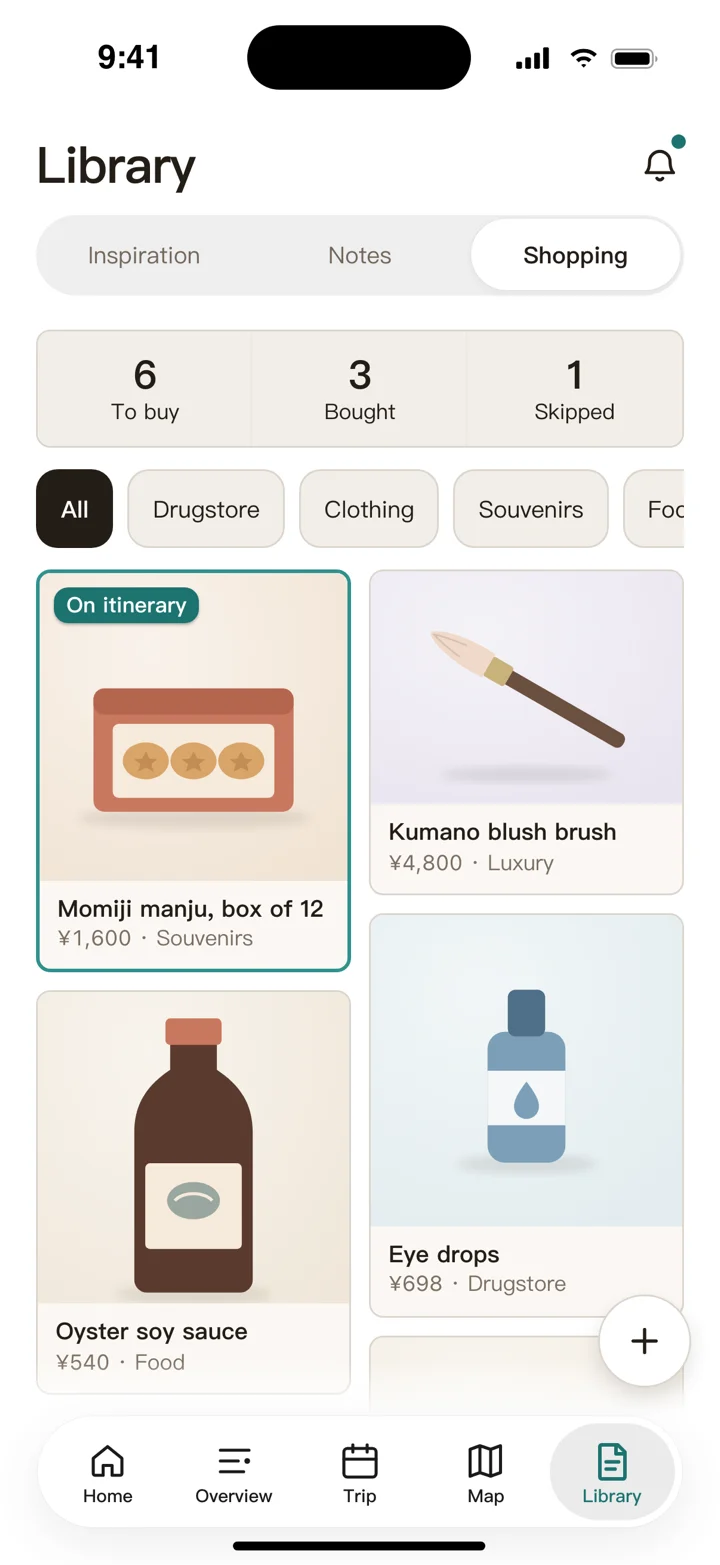
Shopping list
See what's left to buy, and compare prices to get the cheapest
Home widgets
QR code scanner
Open, scan, and it's saved — your companions see it too
Currency
Uses today's rate, and works offline
Read more
Inspiration: whatever you share in from Safari, maps or social apps lands here first; when you're ready to plan, turn it into an event, a note or a shopping item in one tap.
Notes: rich text-and-photo editing, plus read-aloud — don't speak the language? Let your phone say it for you.
Currency: a Home widget that uses today's rate, and converts even without a connection.
Shopping list: write down everything you want to buy and see at a glance what's still left. Note each shop's price too, so you get the cheapest one.
QR code scanner: a Home widget — open it, scan, and it's saved to a history your companions can see too.
Integrations
Works with the other apps on your iPhone
Apple / Google Calendar integration
Your events sync straight to your calendar
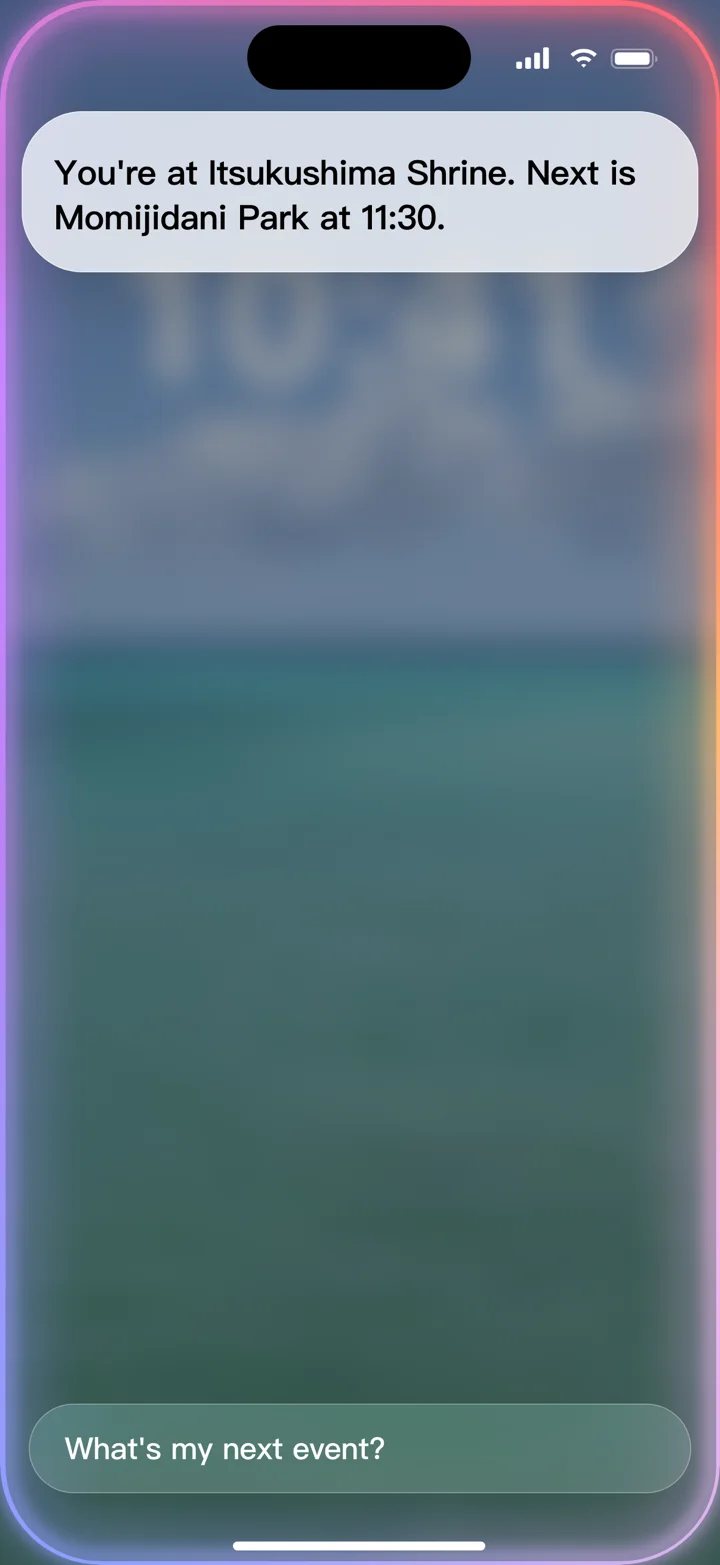
Siri and Apple Intelligence
Ask “What's my next event?” and get the answer without opening the app
Read more
Apple / Google Calendar integration: sync your events straight to your calendar.
Siri and Apple Intelligence: ask Siri or Apple Intelligence about your plans and get to your events fast.
Public sharing: make a trip public so travelers anywhere can see your plan. Only event titles, places and times are shared — never descriptions, files or to-do lists.
Let AI plan it for you
Built-in MCP connects your AI agent. Say "Plan day two in Kyoto for me" and the events appear.
Read more
When your phone and computer are on the same Wi-Fi, connect your AI agent to the TripEZGo app over MCP and have it plan the trip for you.
What’s done, what’s in progress and what’s next — all on one route.
Done
Idea and design
Turning what solo trips kept needing into designs for a trip planner
Done
Groundwork
Planning the architecture with AI
Development begins
Done
The calendar core
Timeline calendar
Drag to reschedule, long-press to add
Travel legs between events
Event files
Overview, Map, Notes
Done
Cloud and system integration
iCloud sync and backup
Live Activity, widgets
Apple Calendar integration
Share in from other apps
Trip templates, pre-trip reminders
Done
The full experience takes shape
Japanese travel phrases
Map markers, hand-off to map apps
Siri and Spotlight
Dark mode
Website goes live
Done
Smarter scheduling
Unscheduled events
Daily start and end points
Shift earlier / later
Multiple route options
Transit departures
Done
Going global, going on the road
Six languages
“On the move” Live Activity
Events past midnight
Walking directions
Japan shopping map data
Done
1.0.0 beta
First TestFlight build
Done
Together with companions
Co-editing with companions
Shopping list, currency converter
Google Calendar integration
Invite links
Private notes
Done
Together on the road
Location sharing with companions
Arrival alerts, Lock Screen navigation
Real-time sync
Read-only trips
iOS 16.2 support
Done
Sprint to launch
Pick a trip for each widget
Export / import a single trip
Public trip links
Submitted for review
Done
1.0.0 on the App Store
Done
1.3.0 released
Trip time zones, pick the place first
Offline place-name database
Calendar zoom, QR scanner
@-mentions in notes
Connect an AI on your computer
Simultaneous edits no longer overwrite each other
Redesigned sharing, smart event-type preselect
Done
1.4.0 released
Collect travel inspiration from any appSave it now; turn it into an event, note, shopping item or map marker later
Done
1.4.1 released
iPhone Duo supportButtons, headers and map controls stay clear of the side status bar, open or closed
Done
1.5.0 released
A trip place and trip time zone for each dayFukuoka for the first three days, Osaka for the last two; the timeline shows each day in local time
New and edit trip in two stepsTrip arrangement, then trip details; the trip name is suggested for you and the cover is the destination map
Write the Overview note while creating a tripText and images
Done
1.5.1 released
Performance improvements and bug fixes
Done
1.6.0 released
An all-new Home page that puts your whole trip at a glance
Smoother adding of events and UI/UX improvements across the app
Chapters in notes
No date yetIn progress
1.7.0
A new Overview, one page per dayEach event shows a cover photo, with its to-dos and files right below
Better to-dosReminders, colour labels, drag to reorder, and notes
Photos in event descriptionsText and photos together; the first photo becomes the cover
No date yetPlanned
1.8.0
Let your iPhone read your bookingsFlights, train tickets, hotel confirmations — on-device AI turns them into events
A smarter app, everywhereSmart suggestions in every feature, so you type and tap less
Let AI plan your trip, right in the appSay where and for how long; no computer needed
Apple Private Cloud ComputeHeavier AI runs on Apple’s private cloud, and your data isn’t kept
No date yetPlanned
Up next
Apple Weather integration
Translate notes and attachments
UI/UX rebranding
Expense tracking and bill splitting
Android app (viewer edition)See the trips companions share with you
Pricing
Start free, upgrade when you need to
Free to use, better with Premium.
Features
Free
Premium
Trips
3 at a timetrash included
Unlimited
Companions per trip
3
Unlimited
Home widget pages
1 page
Unlimited
Ads
Yes
No ads
Calendar / timeline, map, overview
Files, to-dos, legs and backup departures
Co-editing and location sharing
Widgets, Siri
Library & Home widgets (inspiration, notes, shopping list, QR code scanner, currency)
iCloud sync and backup
Import and export
AI agent integration
Live Activity
—
Apple / Google Calendar integration
—
Premium is available as a weekly, monthly or yearly subscription, or a one-time purchase. Cancel anytime in your App Store subscription settings.
Why charge at all?
Pricing was the thing I agonized over most. I built this to genuinely help people who travel on their own — but realistically, it has to earn something to keep going.
What it costs right now: US$200 a month for AI, US$99 a year for the Apple Developer Program, plus about 30 hours a week of my own time building it.
So TripEZGo starts from “free to use, better with Premium.” Free and Premium differ in just these ways: no ads, the number of trips (Free can only own 3 trips at a time, trash included), companions per trip (3 on Free), Home widget pages (1 on Free), Live Activity, and Apple / Google Calendar integration. Premium comes as a weekly, monthly or yearly subscription, or a lifetime purchase.
BackstoryWhy an iOS engineer who often travels solo built his own trip plannerRead the story
How it started
On past trips I always had great companions who did the planning, and I mostly went with the flow. Then in September 2023 I took my first-ever solo trip — a one-day dash to Nagoya — and something switched on. Like people say: you either never do it, or you never stop.
Planning before you leave, keeping on top of things once you're there — when you travel on your own, and especially solo, it's all on you. I needed a tool to keep track of all of it. I tried plenty of approaches, and none fit quite right. With AI everywhere, and being an iOS developer myself, I thought: why not build one?
Apple Notes / Obsidian / Notion / Google Docs
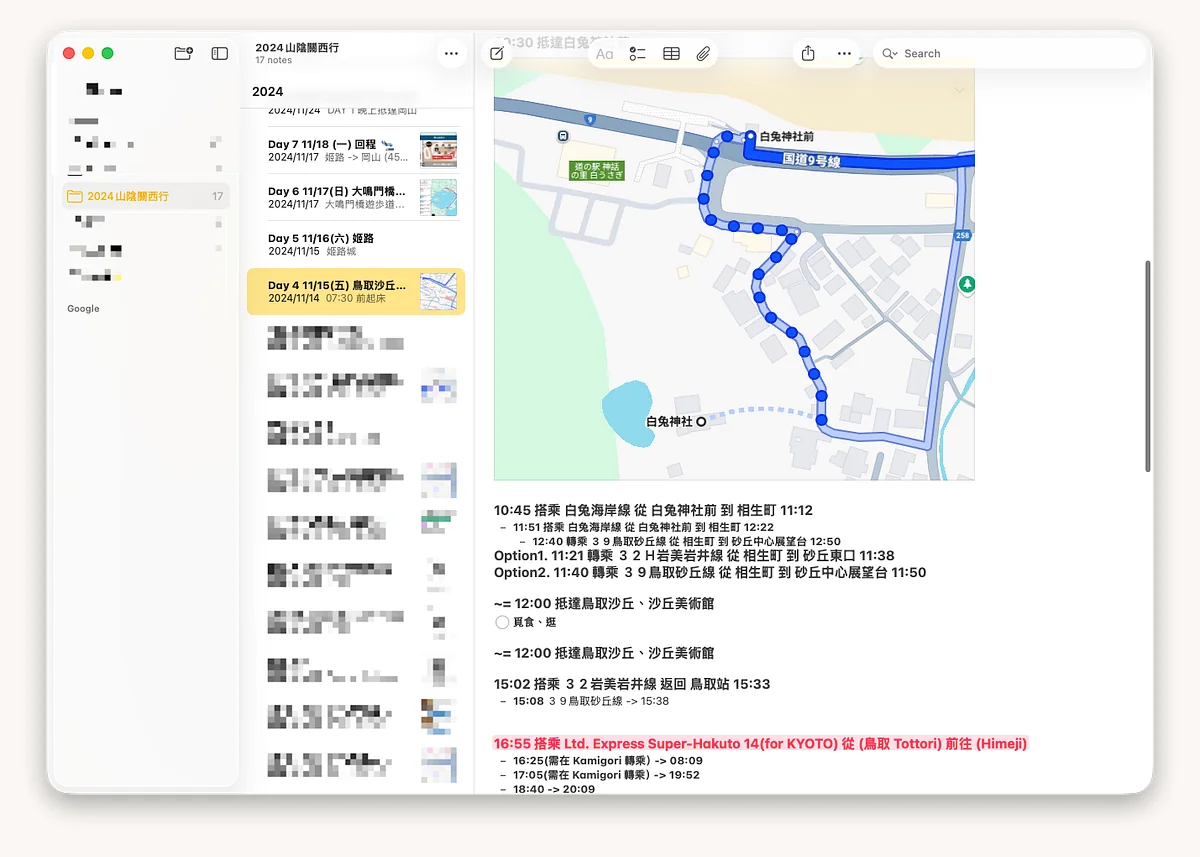
This is what I first planned trips with. The upside is that it's simple: open it and you're in a rich text editor, free to drop in event titles, images and attachments however you like.
The downside is that same freedom. There's no fixed format, so it's hard to see the whole trip at a glance. Once the plan gets long, scrolling to find things is painful; on the road there's no quick way to jump to where you are now; and when plans change, it's a real hassle. And there are no notifications, calendar, trip map or widgets.
In practice, I found it great for collecting places and sketching an outline — you can get a rough plan down fast. But for working out the details, or checking things mid-trip, it's not very handy.
Apple Calendar / Google Calendar
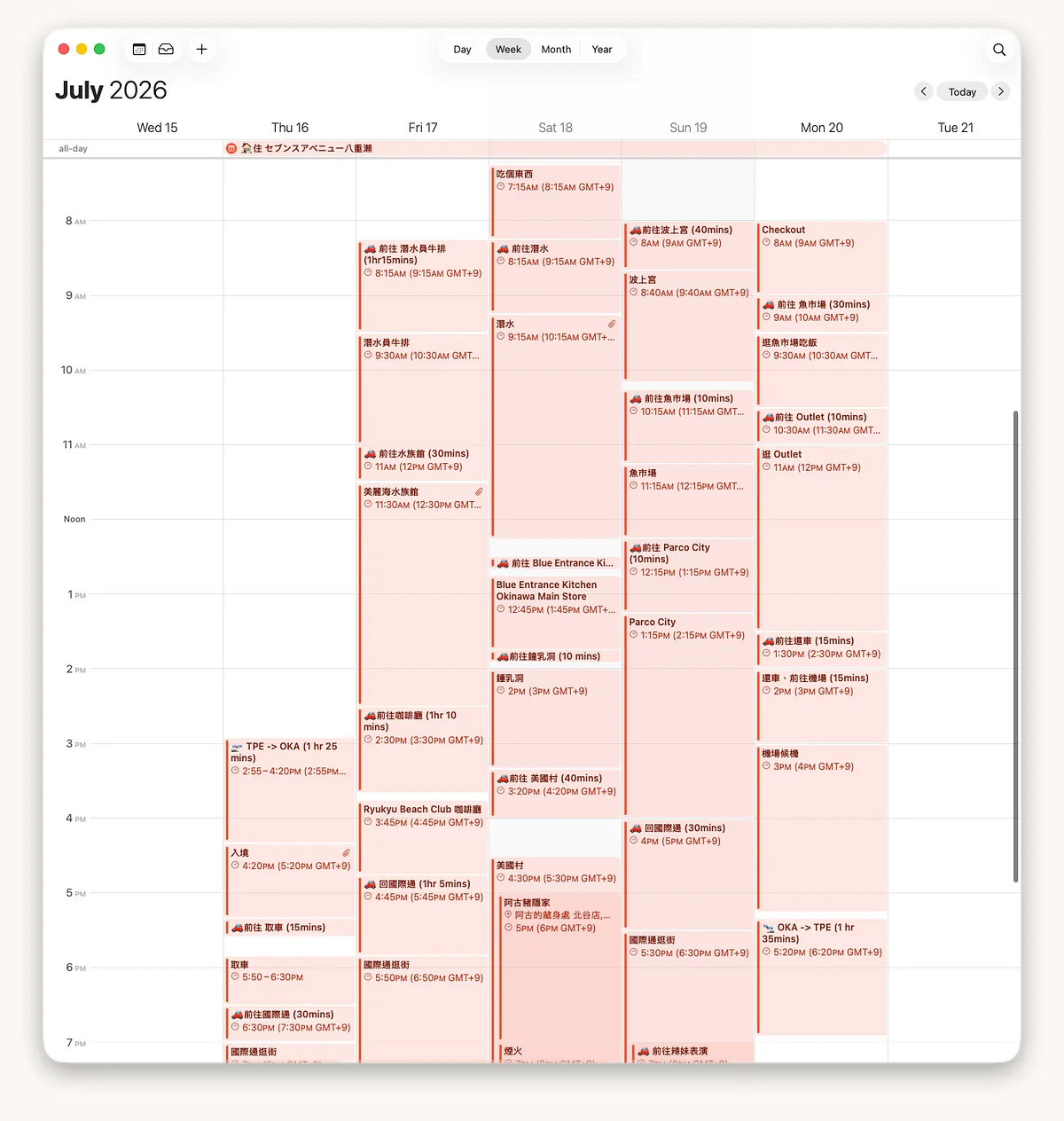
On my most recent trip, Okinawa on our own, we planned everything in Apple / Google Calendar. Planning is really easy: drag, drop, and the event's there; changing a time is just another drag. You can see the whole trip at a glance — where the gaps are, where you're staying too long. On the road you can set alerts, so you know right away how long you've got here and what's next, and last-minute changes are easy. Notifications and widgets work too.
The downside is that things end up scattered. There's no overview of your to-dos, files or notes, and no map view. A calendar is all about the event itself, and each event stands on its own. But some trip information cuts across events: train tickets, a souvenir list, notes. Or say I finish event A with plenty of time left — I want to know which events on other days are on the way and could move to today.
Other trip-planning apps
I also tried a few trip planners from big e-commerce groups. Each had standout features — an overview of your plans, adding events straight from a place, automatic scheduling, maps. But in use, they all felt geared more toward social and shopping. Fair enough: for a company, a product has to make money.
And so there's TripEZGo — plan the trip, carry what it needs, all in one app.
My travel journals
Dev logTripEZGo dev log (as of 1.4.1, 2026/10/25)Read the log
From the first message on 2026-08-02 to 1.4.1 on the App Store, TripEZGo was built by one person working with AI.
3,050messages161,952 characters
85daysof developmentabout 1,252 hours of runtime
35.9a daymessages on average1,905 characters a day
3,576commits
77.8Btokens used123M output · 76.6B cache reads
43ADRsarchitecture decision records
Product refinements worked over again and again in those messages; the biggest words are the topics that came up most.